
Instead of viewing the KPI Dashboard on Softagram UI, Azure DevOps users now can use Softagram provided widget to integrate the KPI Dashboard directly to Azure DevOps Dashboard view. The steps are:
Create Dashboard if you haven't, then add new widget called "Softagram" by drag and drop
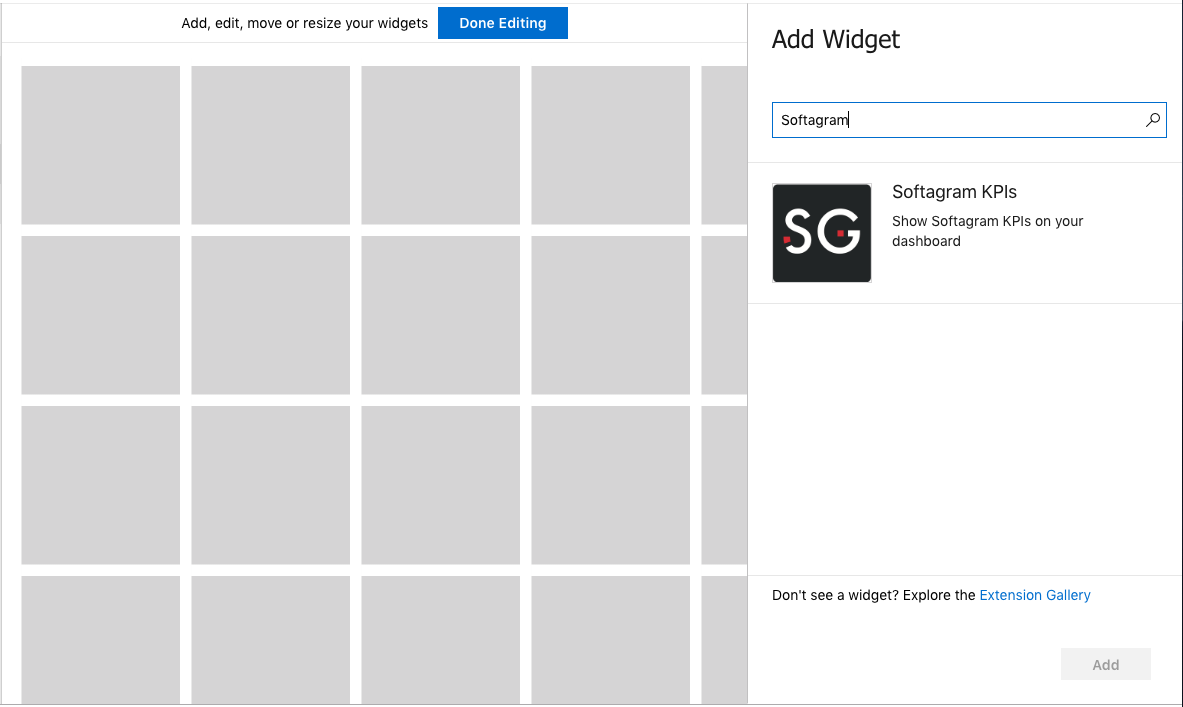
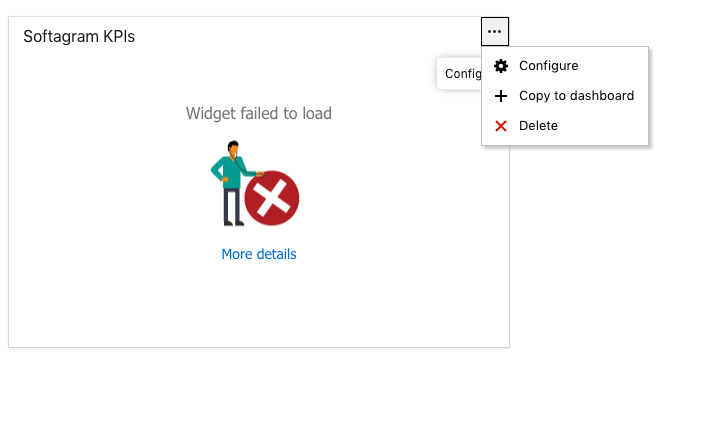
2. After adding the widget, it's going to look like below, don't feel panic, it's just that you need to configure the widget settings by clicking the highlighted button
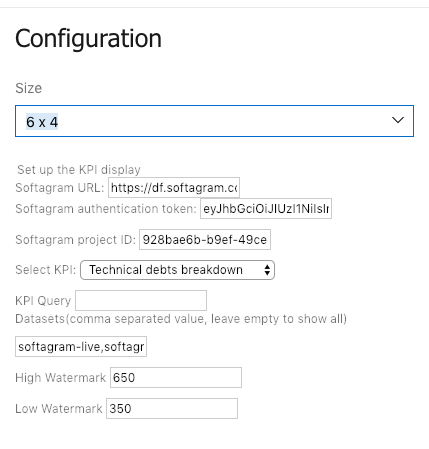
3. The configuration view will look like below, there are many settings that can be set to customize the view, they are:
Softagram URL: The URL of the server, in case of cloud users, it's https://private.softagram.com, for on-premises deployment, it's going to look like https://softagram.mycompany.com
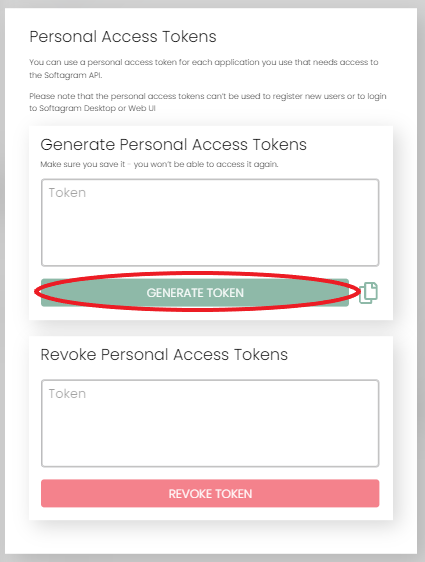
Softagram authentication token: Your Softagram account API token to fetch KPI data. Get it from Softagram: first go to 'User settings' ('user' icon at top right corner), and then open Access Tokens section, and use GENERATE TOKEN:
Softagram project ID: Id of your project in Softagram
Select KPI: Choose which KPI you want to display on chart
KPI Query: Specific query for different types of KPI (beta)
Datasets: Specify which datasets you want to display on chart (for multi-line charts), e.g. "foo,bar" then only "foo" and "bar" datasets will be displayed
High watermark: Provide a number to set as high limit threshold. If provided, there will be a horizontal dash line displayed on the chart to indicate the limit
Low watermark: Provide a number to set as low limit threshold. If provided, there will be a horizontal dash line displayed on the chart to indicate the limit
4. Save the config, then reload the page to see the chart! If you want to add more charts, just click "Edit" on Dashboard view then repeat step 1.
Tips: You can click on "..." button on each chart box and choose "Copy to Dashboard" for quickly replicate the chart and then you only need to change the "Select KPI" for another metric.
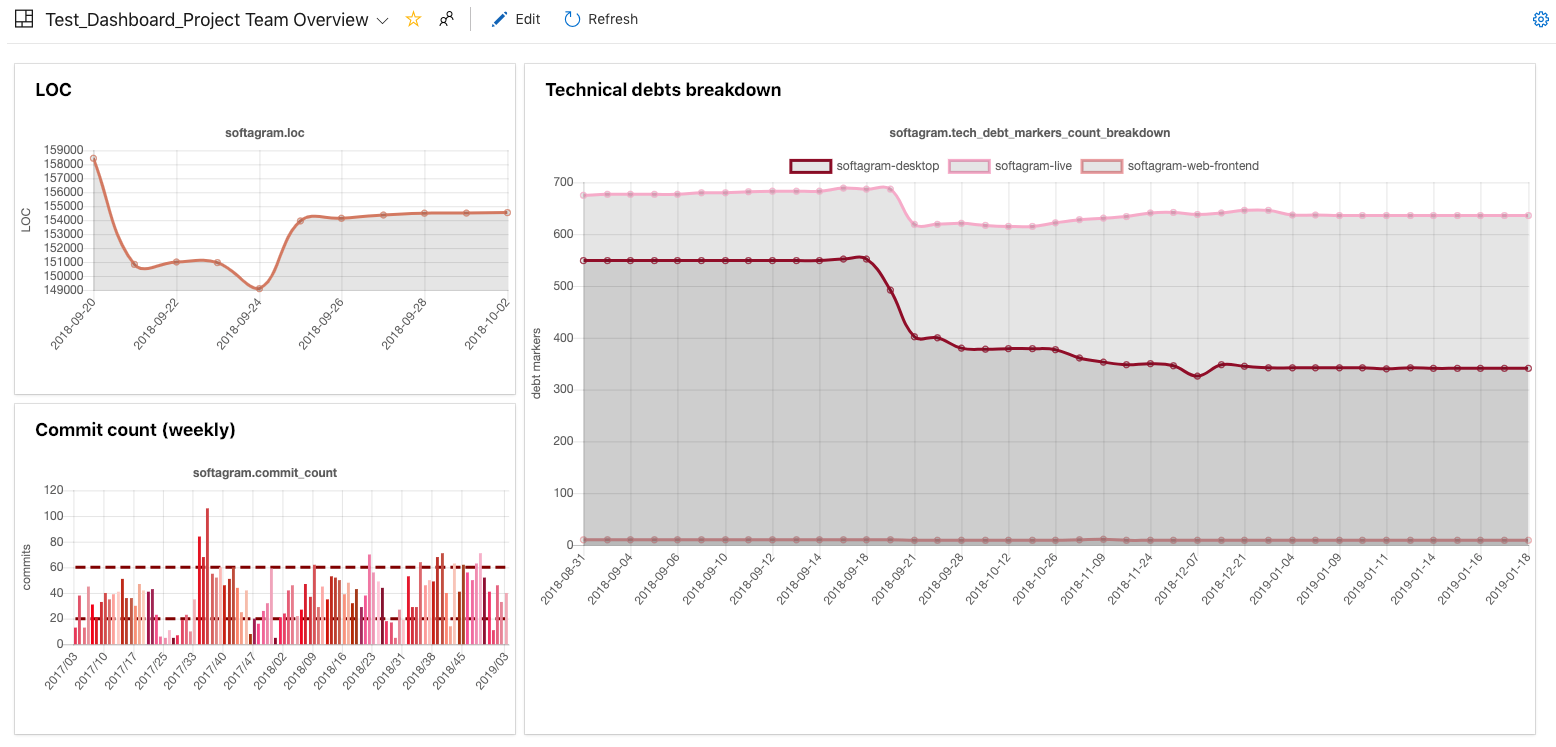
Example: Dashboard view with 3 Softagram widgets
Tips:
What to do when token is expired?
Just get the new token using the API and replace it to one of the widgets. Then refresh the page and all other widgets will have the newly added token.
Originally published at help.softagram.com