
When I need to use Softagram desktop for code change review?
Softagram Impact Report for larger code changes are automatically abstracted to provide meaningful information in one glance. That is the report you see in your Pull/Merge Request discussion field (or Patch Set in Gerrit). This automated abstraction hides the detailed level dependencies and impacts.
In those cases, it's possible to open same impact report to Softagram Frontend to see more detailed graphs (normally 1 to 4 different views), or into Softagram Desktop and browse freely the detailed changes done in that given change.
Steps to the change view in Softagram desktop
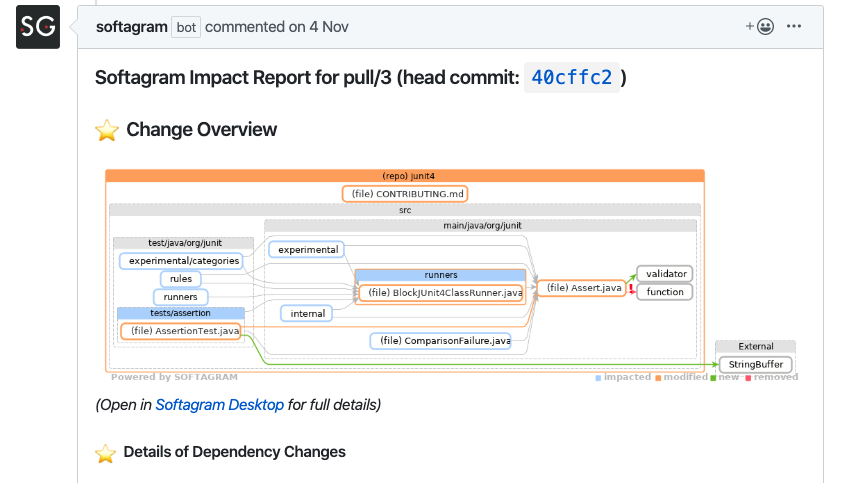
Find Pull/Merge request ID, (or Change ID in Gerrit) from Softagram Impact Report
See example view below from GitHub, pull request "3"
2. Open Softagram desktop and "open model" menu
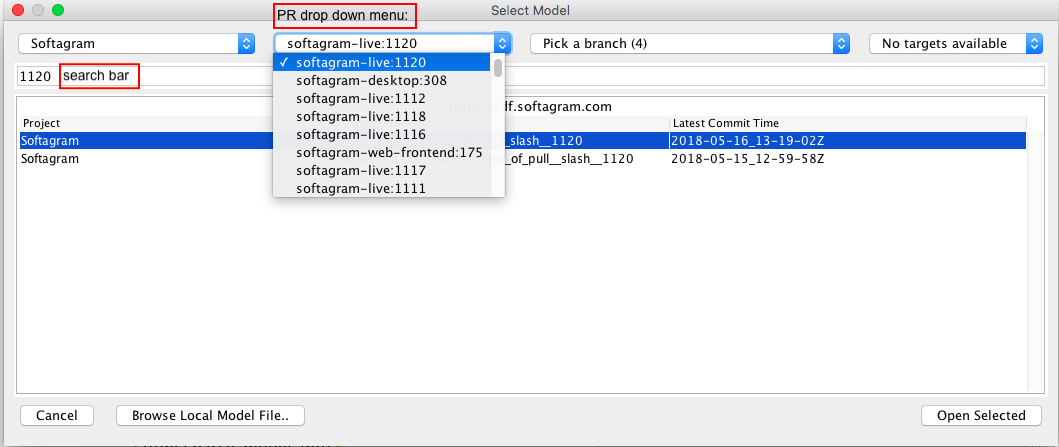
From Open Model, you can open corect model by either selecting the ID from drop-down menu, or typing the number to the search bar and selecting correct model. See picture below for example (ID 1120 searched)
3. See and browse change in Softagram desktop
Softagram desktop opens automatically comparison view for the pull request, showing added (green), changed (orange) and removed (red) elements and dependencies.
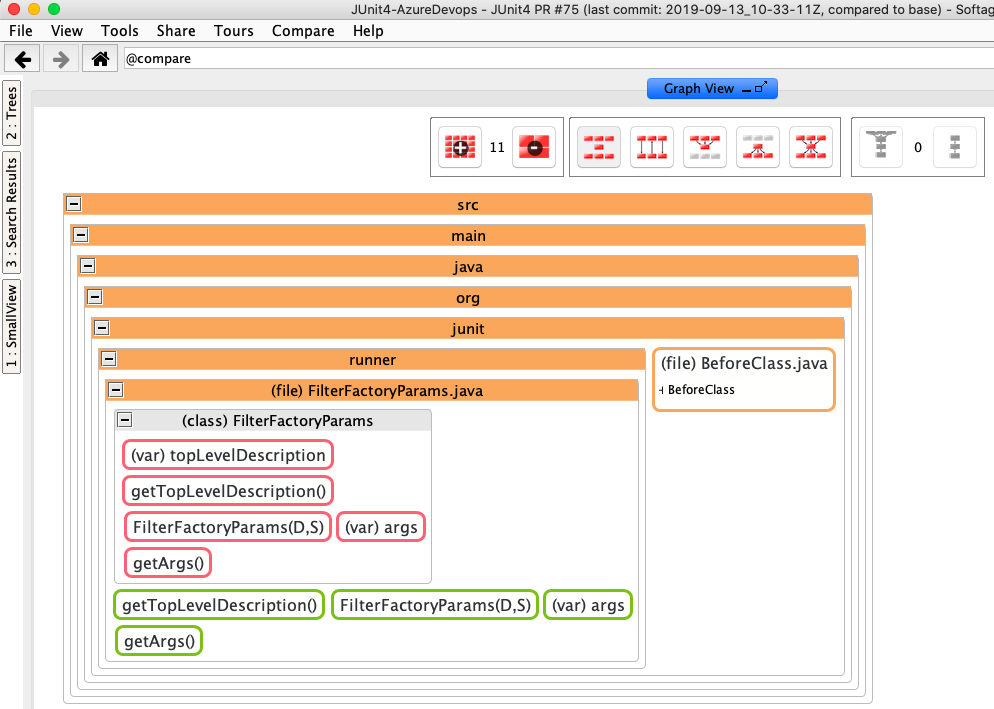
First view consists of changed file level elements, and user can freely browse the different views, see example below (How to use Softagram desktop, see help: Basic usage of Softagram Desktop )
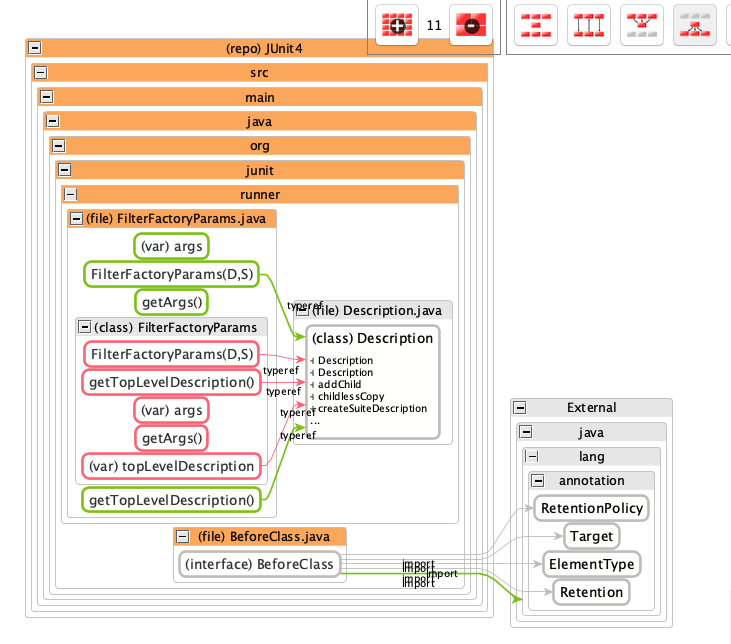
All dependency changes, also towards not changed elements (seen in grey) can be seen by activating "Outbound view", see example below.
You can see the described steps also from the video below! (Sorry for slightly outdated version)
Have fun, and remember to send feedback and improvement proposals to us!
Originally published at help.softagram.com