
As Softagram integration has been implemented to create webhooks automatically, Helix TeamHub integration is straightforward to take into use.
1. Create a new project / Select project
Select switcher (top right corner part, similar as in the picture below) to open list of teams and projects

Select a project or create new project (find more: here)
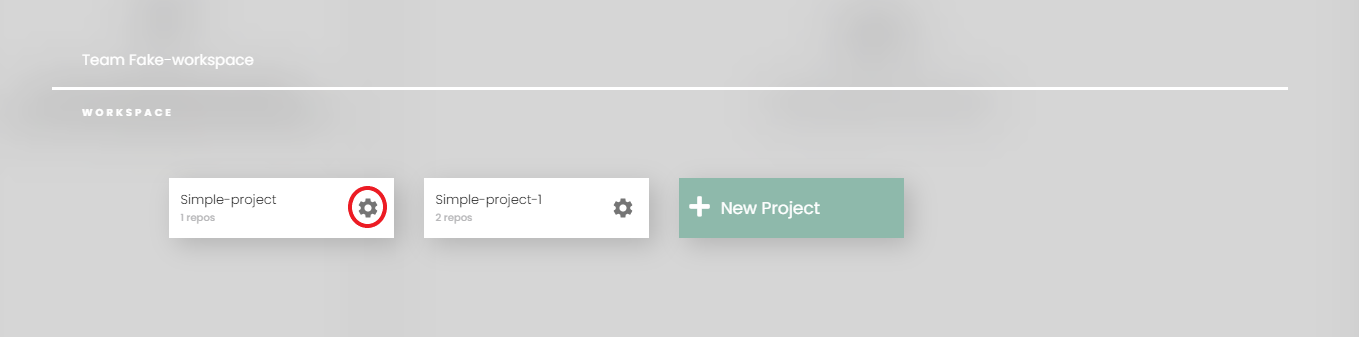
If adding repositories to exist project, choose the setting icon on the project card and choose 'Add new repositories'
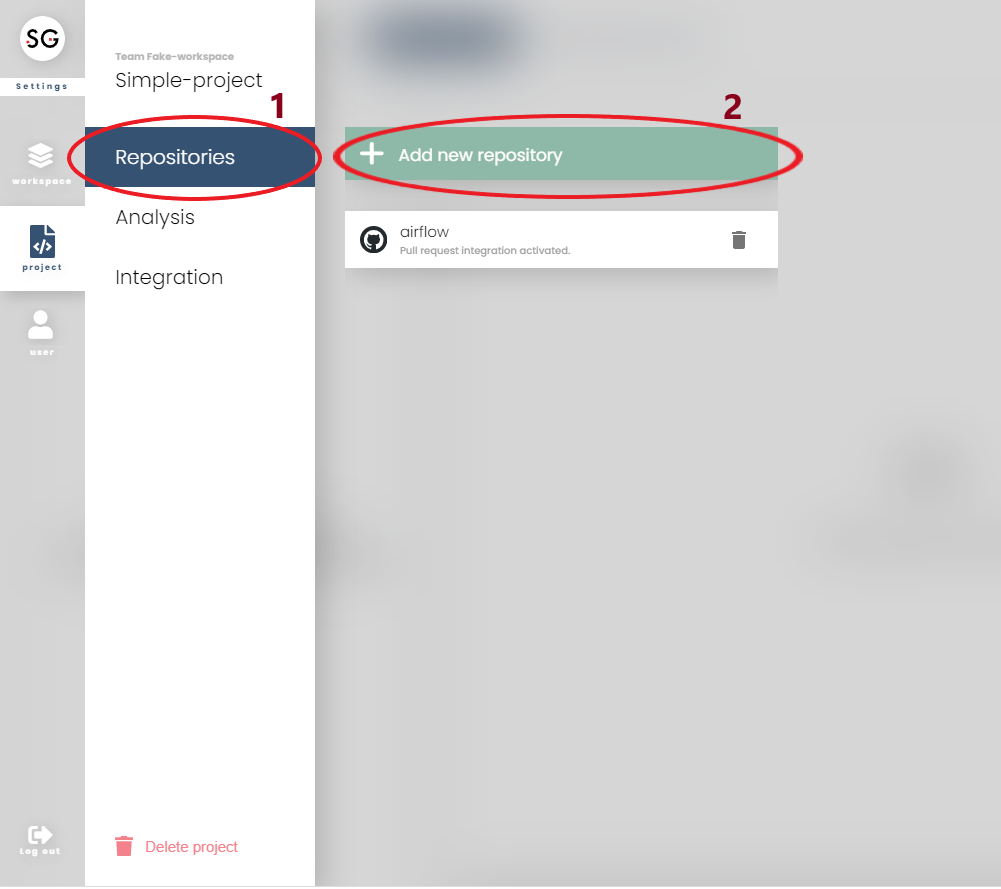
2. Add repositories from Helix TeamHub
You will go directly to this prompt after select 'Add new repositories' or setup name for project
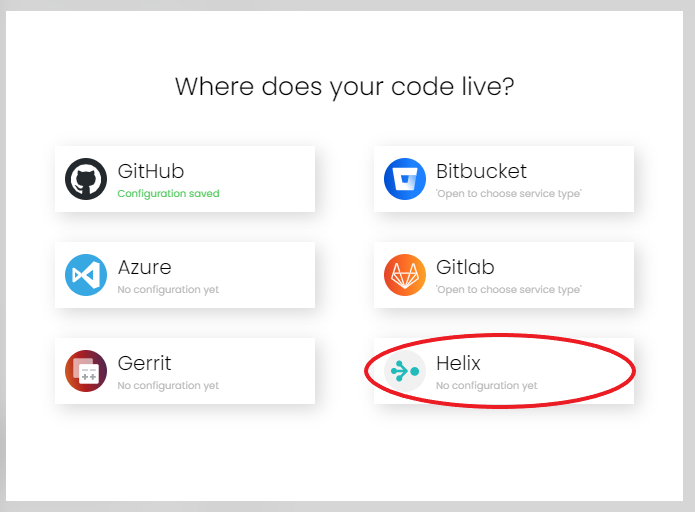
3. Fill the required fields
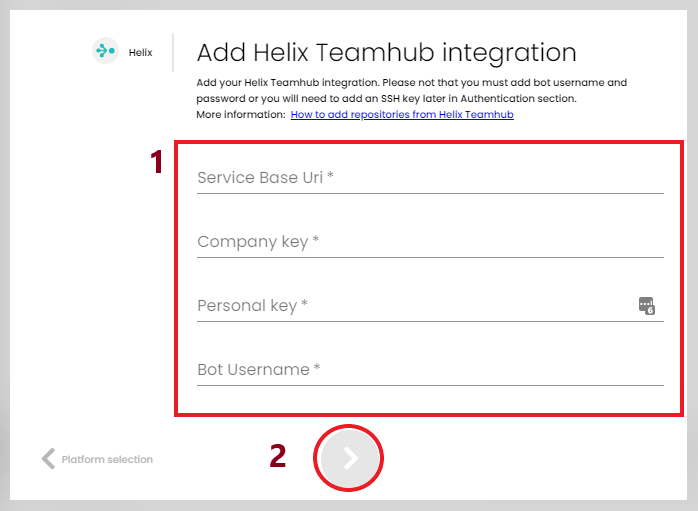
(scroll down for 'Bot Password')
Find out the base URI of HTH service (e.g. https://helixteamhub.cloud)
Create a tool user account to Helix TeamHub e.g. "Softagram_bot" (It can not a bot user since attachments are not yet supported by Helix TeamHub) and give it Admin rights (otherwise webhooks need to be created manually for each repo, since only Admins can create webhooks).
Set the "Softagram_bot" to be used for the integration and get a "Company Key" and "Personal Key" by copying them from Helix TeamHub -> Settings -> API keys.
Add the Username and Password (if you don't use SSH)
Note that when using SSH, add it from "Project Settings" and then you don't need to add bot username and passwords
4. Click OK and select the repositories from the list!
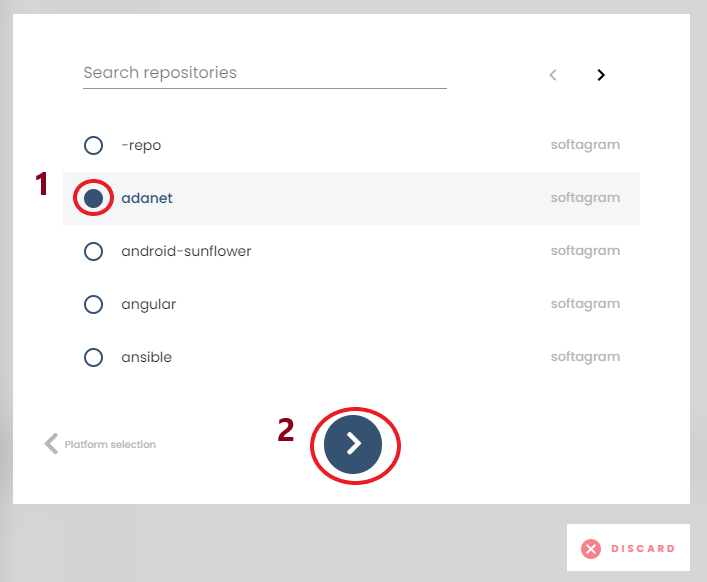
That's all! You should see the status in the repository list like below:
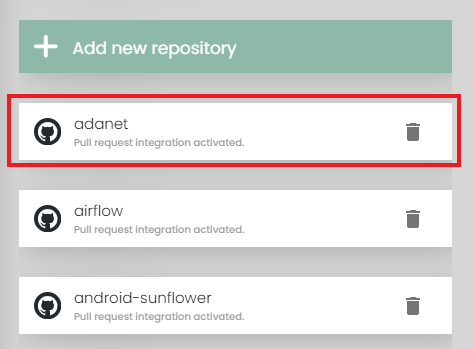
Now, just go and create first code review and see the report appearing to Helix TeamHub Code Review discussion flow.
NOTE:
You can also initially do and change the settings any time from "Project Settings" page (Click the ⚙️icon to get there)
Tips: changing in Workspace settings to setup for all projects belong to the workspace. Check on how to setup in workspace settings.
Troubleshooting:
If your Helix TeamHub Enterprise URL hostname does not have words helixteamhub nor deveo you need to ask Softagram support (support@softagram.com) for more instructions.
How to check all went correctly with the repositories? Go to https://Your-HTH-address/ORG/projects/PROJECT/hooks and see if newly created hook is shown there.
Originally published at help.softagram.com