
When using Softagram via GitHub App, you can add and remove repositories directly at GitHub UI. (You can find it here: https://github.com/apps/softagram )
Initial repositories selection
When installing GitHub App, you are asked to either select all repositories under analysis or only selected ones (we propose to first select the most active ones, see picture below)
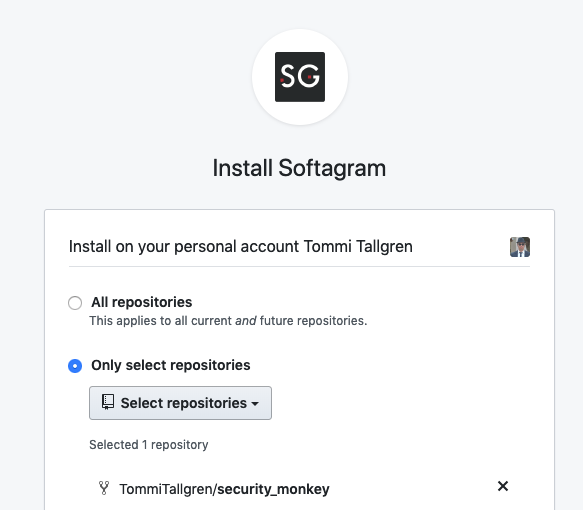
Selecting repositories after Softagram App is installed
After installation you are able to add/remove repositories directly at Softagram frontend (See in the bottom of this help document how!). It allows you also to create "projects" where you can select the repositories to be analysed as a one model.
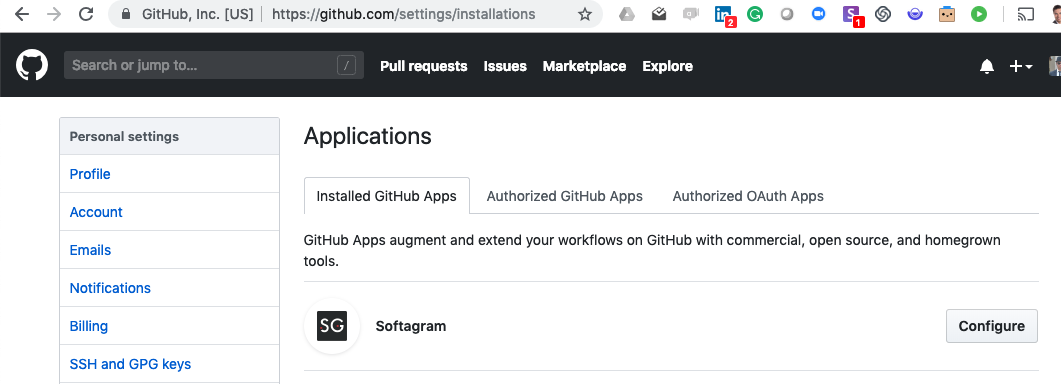
From GitHub the selection can be found from the GitHub App page: Click Here to go there directly. OR in the Settings and selecting Applications and there "Configure" from Softagram application, see picture below:
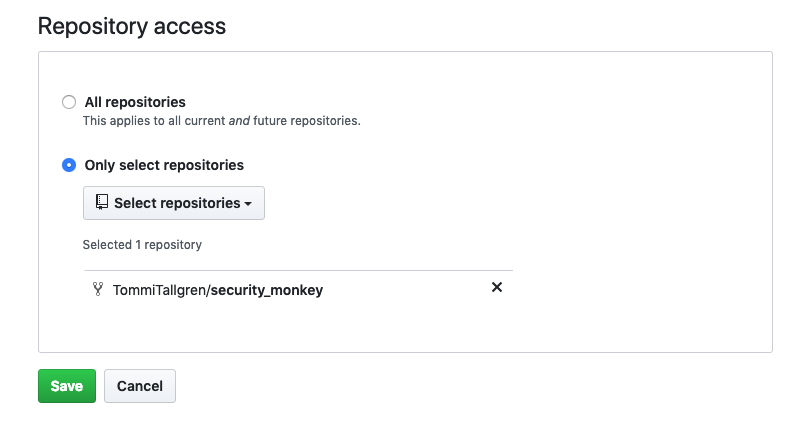
In configurations, scroll down, and you find the Repository access, where you can add and remove the repositories. See picture below:
Adding/Removing repositories in Softagram frontend
If your project consists of multiple repositories, you might want to add them to a single project in Softagram. Follow the steps below:
1. Add your repositories to Softagram Cloud:
Go to https://private.softagram.com, login with your account and create new project if needed.
Add your repos from Github:
- Open in project settings (the settings button on the upper right corner, next to logo)

- Open the 'Repositories' button and choose 'Add new repository', then choose 'Github' as your platform.

Then select the repo(s) you want and click Forward button:
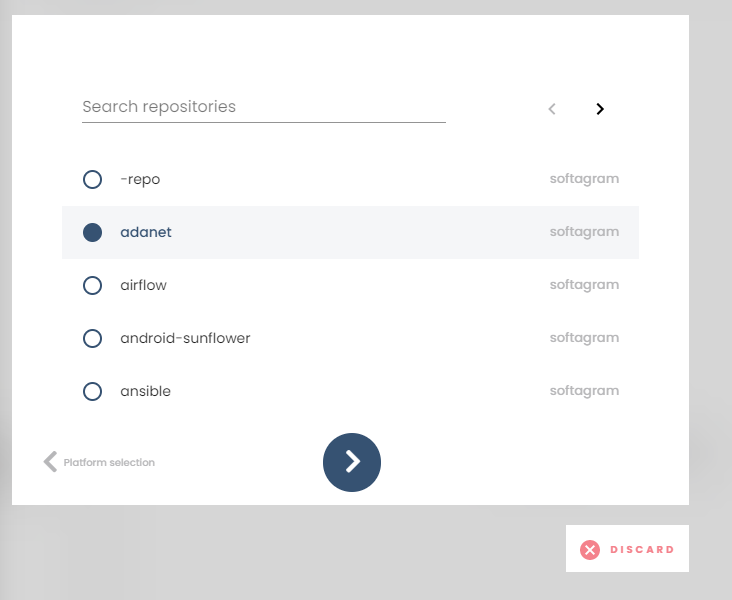
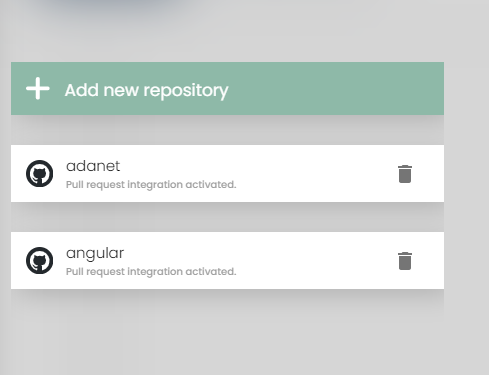
Confirm you can see the selected repos under your project
If you want any help on configuring the repositories, please email us at support@softagram.com We are happy to help!
Originally published at help.softagram.com