
NOTE: This content only applies to Softagram Enterprise installations. If you are using Softagram Cloud, please install our GitHub App instead.
Integrating Softagram with GitHub (OAuth)
Softagram comes with impact reports that are automatically created when you open a new pull request. It gives the pull request contributors and reviewers a quick understanding about the change.
This is all you need to do
Add your repositories to Softagram
Enjoy automatic reports
If you have issues getting the automatic reports, please check in the bottom of this article how to check that the webhook has been set up for your repository correctly.
1. Add your repositories to Softagram:
Login to Softagram Enterprise with your account and create a new project
Add your repos from Github Cloud:
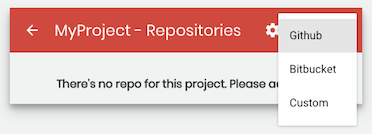
Authenticate to GitHub, if asked
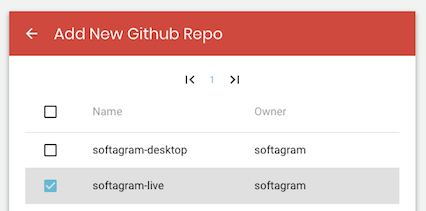
Select the repo(s) you want and click Add:
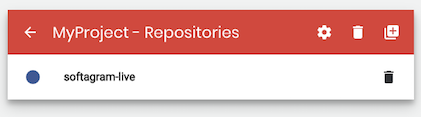
Confirm you can see the selected repos under your project
2. Enjoy automatic Impact Reports
When a new pull request is opened to your repository, Softagram will analyze the change and send an impact report back as a comment to your pull request. See the example below and read more about the report here!
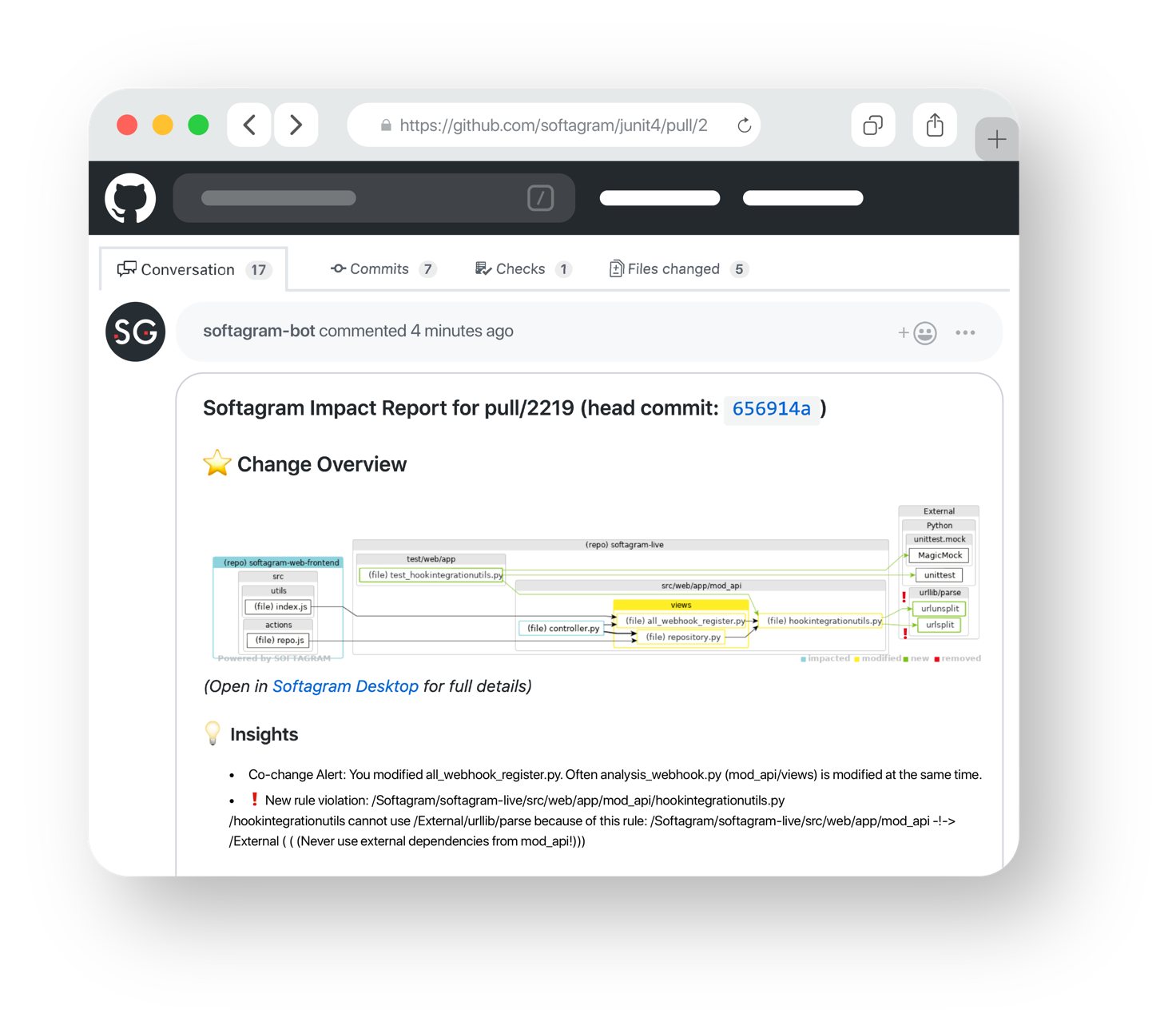
The comment is sent by the GitHub account you used when authenticating with Softagram. If you prefer to not use anyone's personal account, then you should create or use an existing CI/bot account in your GitHub organization and use this account when connecting your Github account to Softagram.
You can even use one of the SG logos below as the avatar for the GitHub account so it'll be completely clear that the impact reports come from Softagram.


Did you have issues with getting the automatic reports?
Check that the Softagram webhook was created properly to your repository in GitHub
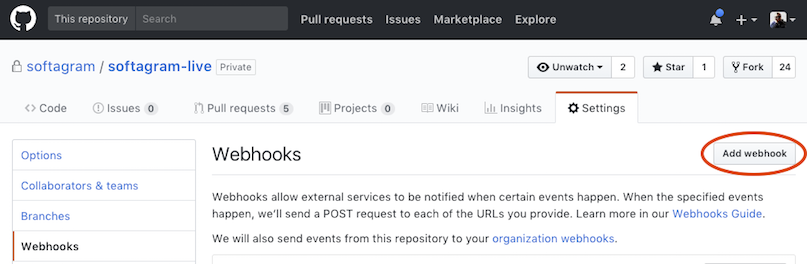
Go to github.com and open repository settings (something like https://github.com/your_org/your_repo/settings/hooks)
Open Webhooks and if the Softagram webhook doesn't exist, click "Add webhook":
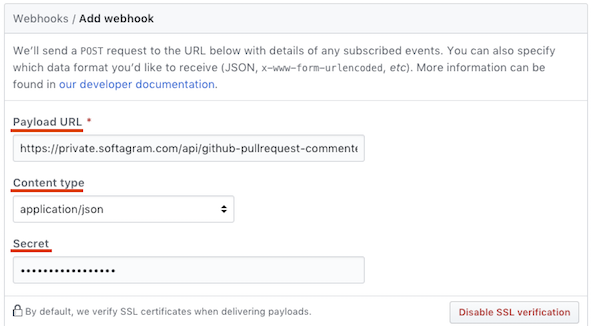
Set Payload URL to https://private.softagram.com/api/github-pullrequest-commenter-webhook
Set Content type to application/json
Leave the Secret empty
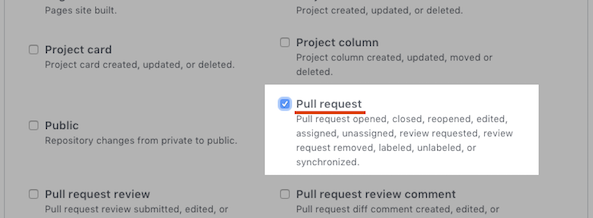
Choose Let me select individual events

Select only "Pull request", unselect anything else
Keep Active checkbox selected and then click "Add webhook"

Originally published at help.softagram.com