
Skip to Content
Softagram
  • Services
    • ERP
    • AI Services
    • Security
  • Company
  • Contact
  • Blog
    • News
    • Guides
  • Jobs
  • Tech
  • Events
  • English (US) Suomi
  • Sign in
  • Contact Us
Softagram
      • Services
        • ERP
        • AI Services
        • Security
      • Company
      • Contact
      • Blog
        • News
        • Guides
      • Jobs
      • Tech
      • Events
    • English (US) Suomi
    • Sign in
    • Contact Us

    Softagram Desktop, Getting started with 3 easy steps

    Quick Guide
  • All Blogs
  • Guides
  • Softagram Desktop, Getting started with 3 easy steps
  • January 15, 2019 by
    Softagram Desktop, Getting started with 3 easy steps
    Softagram Oy, Matti Mäki

    1. Get your Softagram credentials

    Login with Github or set a password for your account with the activation email that you received from Softagram.

    If you have any issues with logging in, please email us at support@softagram.com.

    2. Download Softagram Desktop

    Click below to start your download, or go to softagram.com/desktop for details.

    Windows
    Mac
    Linux

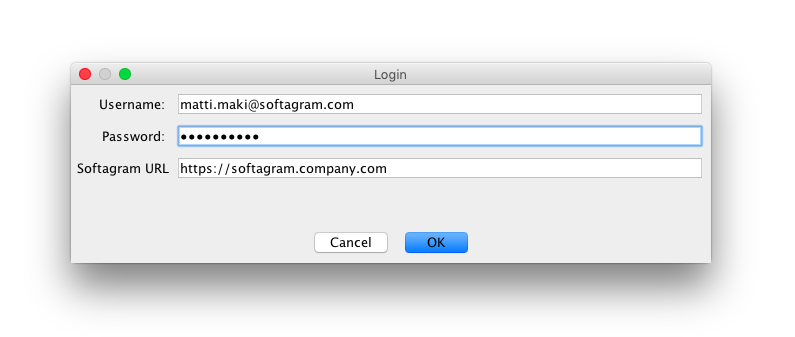
    3. Open Softagram Desktop and login

    Once installed, open Softagram Desktop and login with your credentials. If you use Softagram Enterprise, remember to change the Softagram URL to your company's. Username is your email address.

    NOTE: If you have registered to Softagram Cloud, please use Softagram URL: https://private.softagram.com
    NOTE 2: If you registered to Open Source Cloud, please use  Softagram URL: https://opensource.softagram.com
    4. Enjoy!

    Once you have successfully completed the steps above, read next about Basic Usage.

    Troubleshooting

    Q: What's our Softagram URL?
    A: Check your account activation email - Softagram runs on the same host that was used to set your password.

    Q: What's my username?
    A: It's your email address

    Q: What's my password?
    A: Check your activation email. If you didn't receive one, go to your Softagram URL and click the Forgot password -link, entering your email address. If you can't do any of these, please contact us and we'll sort it out.

    At any point, feel free to email us at support@softagram.com. We are happy to help 😊

    Related guides

    • Basic usage of Softagram Desktop

    • Using the Search effectively (Softagram Desktop)

    • How to set-up source code integration with OpenGrok

    • Configuring Softagram Desktop to use the HTTP(S) proxy by the system settings

    • Ubuntu/Linux: Startup Error related to translucency

    • How to make Softagram Desktop work with 32-bit Windows PC's

    • All guides

    Originally published at help.softagram.com

    in Guides
    # Softagram Analyzer

    Intelligence for enterprise resource planning and

    cybersecurity for software development

    Through our diverse expertise, we now offer a strong combination of artificial intelligence, operational efficiency, and cybersecurity knowledge.

    Contact us

    Softagram Oy
    Ketolanperäntie 469 
    90450 ​Kempele 

    • +358504836173
    • info@softagram.com
    Follow us
    Copyright © Softagram Ltd.
    Powered by Odoo - Create a free website

    We use cookies to provide you a better user experience on this website. Cookie Policy

    Only essentials I agree