
This help shows how to integrate Gerrit projects to softagram after you have registered to Softagram cloud service (from https://softagram.com, or via GitHub App (also possible to use for other than GitHub repositories) from https://github.com/apps/softagram).
Create a bot account in Gerrit
The recommended way to set up your bot account is to use the following SSH command, replacing the URL and password fields as necessary. The HTTP password you set here will be used as your bot token.
$ ssh -p 29418 <username>@<your.gerrit.domain> gerrit create-account "softagram-bot" --http-password <botPasswordHere>
Using a token generator could help make your bot account's HTTP password more secure.
2. Create a new project / Select project
Select switcher (top right corner part, similar as in the picture below) to open list of teams and projects

Select a project or create new project (find more: here)
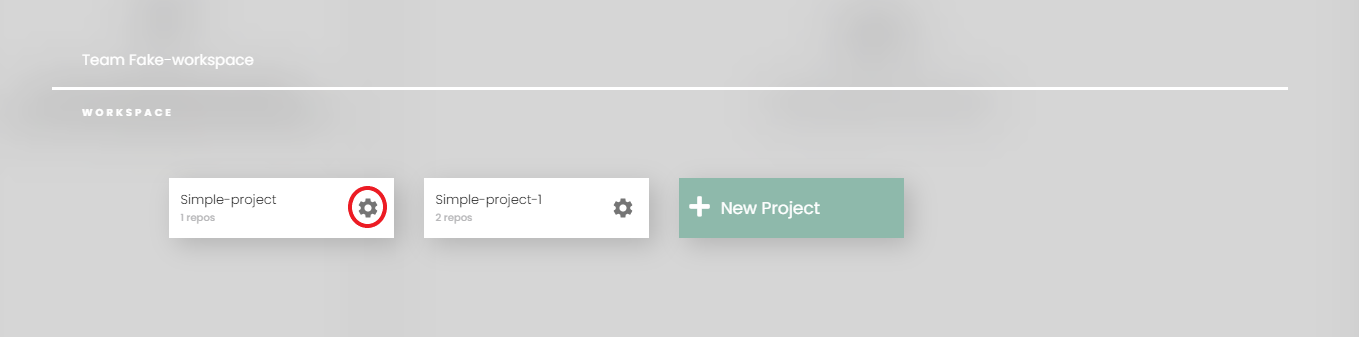
If adding repositories to exist project, choose the setting icon on the project card and choose 'Add new repositories'
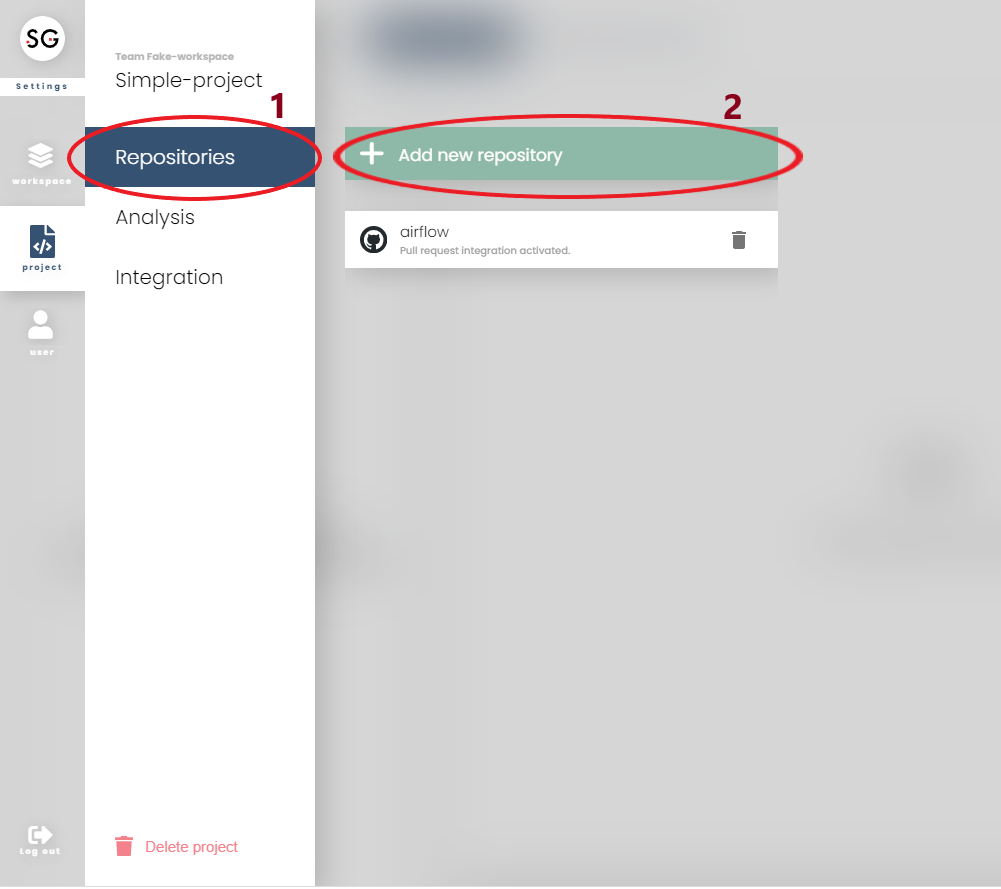
3. Add repositories from Gerrit
You will go directly to this prompt after select 'Add new repositories' or setup name for project
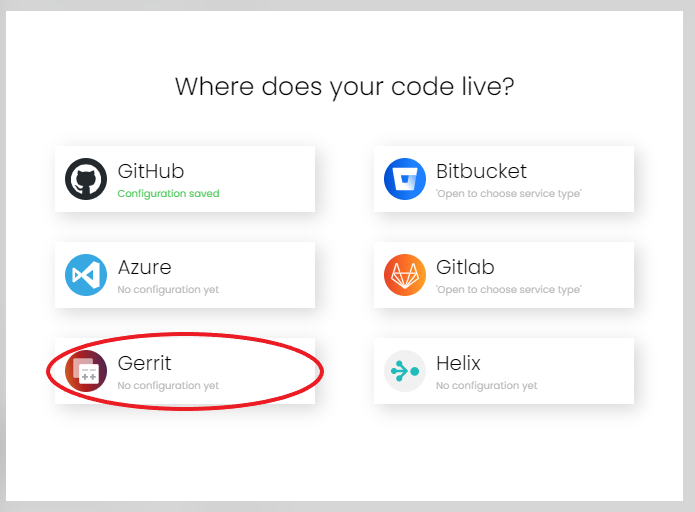
Finally, fill in the form and then go forward.
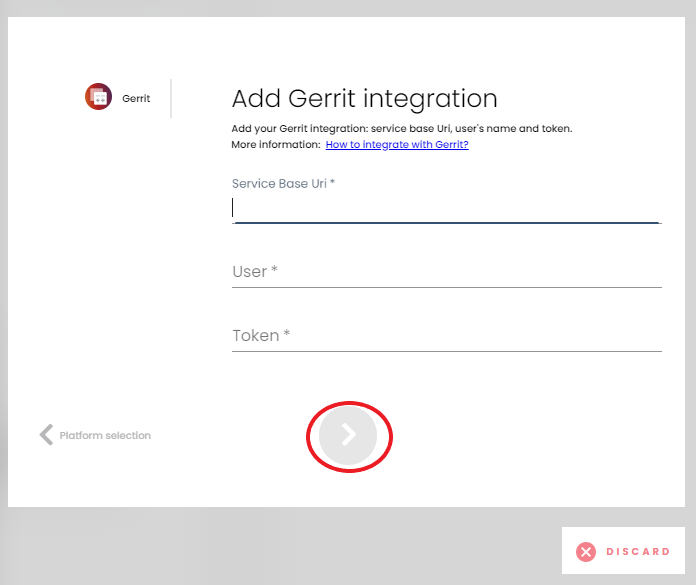
3. Update Gerrit settings
If you wish to update your Gerrit server settings a later time, you can easily go into project settings or in workspace settings (will be used for all projects belong to this workspace)
Check from here how to open settings
Open the integrations tab:
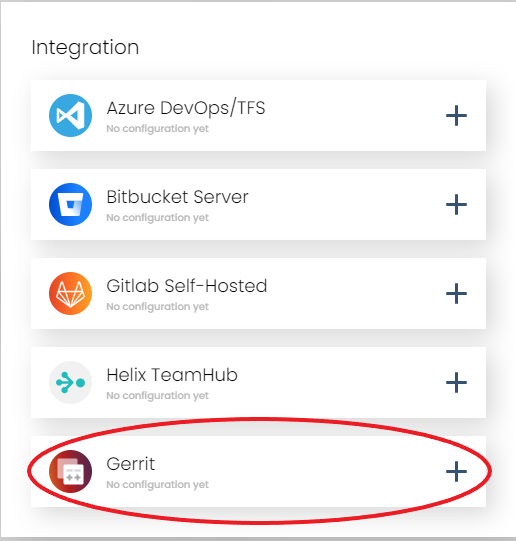
Then configure your Gerrit URL, bot username and token:
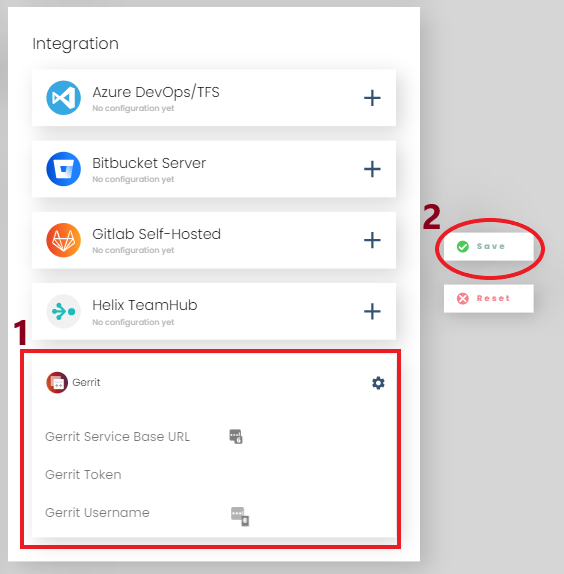
Finally, click 'Save' before close settings to go back to 'Repositories' tab.
4. Done
What next? Continue over to setup impact reports for your project.
Need help, or didn't it work? Email us at support@softagram.com.
Originally published at help.softagram.com