
1. Configure Gerrit and add repositories to Softagram
If you didn't yet do it, follow this help article to configure access to your Gerrit server and add your desired repositories to Softagram.
2. Set up webhooks in Gerrit
First of all, you will need to install the Webhooks core plugin for Gerrit.
Next checkout the refs/meta/config branch of the repository for which you would like to have automatic impact reports (i.e. the repository you have already added to a Softagram project).
Make a new file webhooks.config (or edit the previously existing one) with the following:
[remote "Softagram"]
    url = https://private.softagram.com/api/gerrit-patchset-commenter-webhook
    event = patchset-created
Note: make sure to update the webhook URL according to your Softagram's service URL. In case of an on-premises solution, this could be, for instance: https://softagram.example.com/api/gerrit-patchset-commenter-webhook
or https://opensource.softagram.com/api/gerrit-patchset-commenter-webhook if you are using Softagram open-source.
Your server should now be ready to communicate with Softagram (if not, try restarting your Gerrit server). If you need further assistance, you can contact us at support@softagram.com
3. Enable images in Gerrit comments (recommended)
Polygerrit users simply need to download Softagram's imagare-lite plugin from https://github.com/softagram/imagare-lite. Save imagare-lite.html into the plugins folder of your Gerrit server installation. If you do not want to render all .png files to images, make sure to edit the pattern line in imagare-lite.html to only render Softagram image links as images, e.g.
"pattern": "https:\\/\\/private\\.softagram\\.com\\/.*\\.png
If you are using Gerrit 3.0+ or you have GWT disabled, skip down to 4.
GWT users will need to install the imagare plugin for Gerrit.
For best results, add the following lines to your gerrit/etc/gerrit.config file:
[plugin "imagare"]
        enableImageServer = false
        pattern = https:\\/\\/((opensource)|(private))\\.softagram\\.com\\/.*\\.png
        defaultProject = All-Projects
        linkDecoration = inline
If you are using an on-premises Softagram installation, change the pattern accordingly.
4. You're all done!
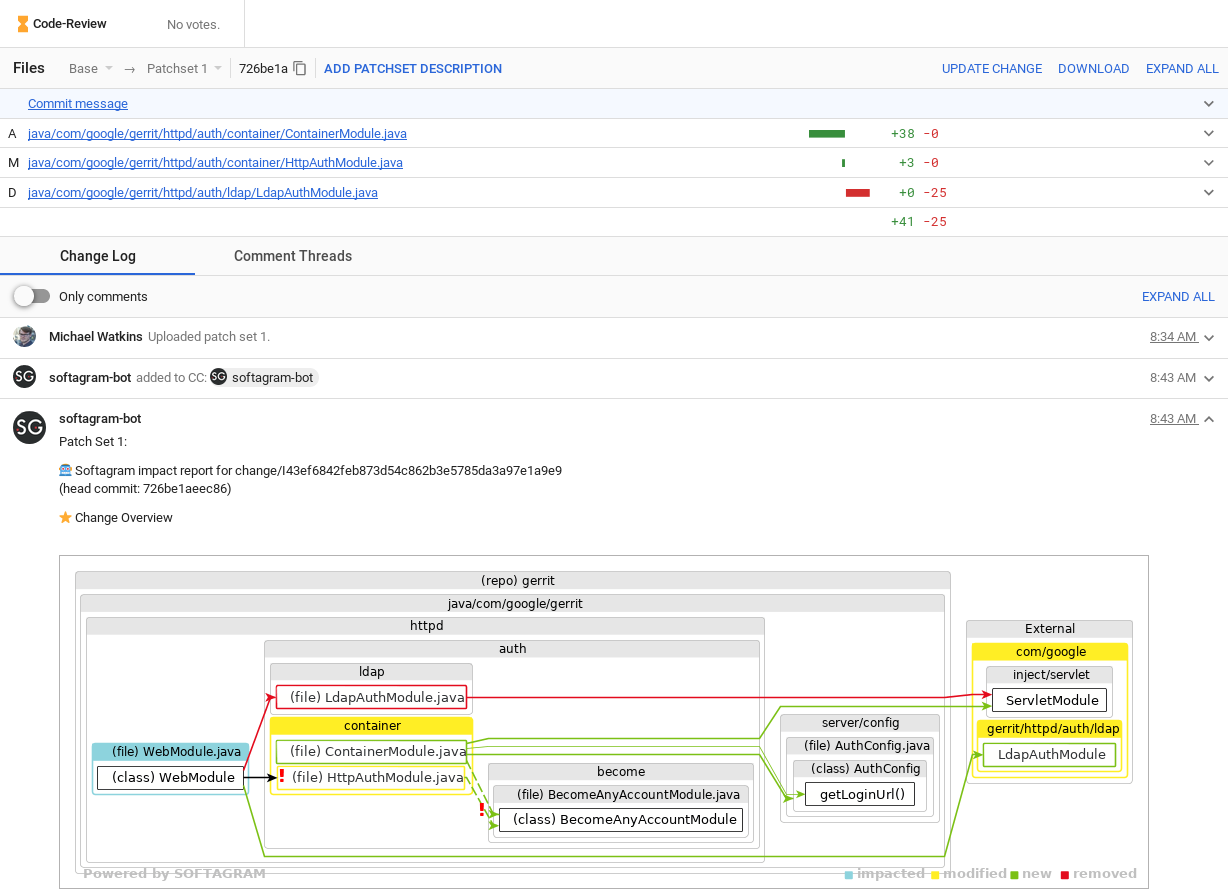
Given that you have added the repositories to Softagram and successfully configured the webhook, you should receive your first impact report on the next submitted patch set.
Note: Gerrit version 2.16+ is recommended. Version 2.14 is the minimum supported due to major API changes between Gerrit versions. If you have an older version and want to enable impact reports, please email us at support@softagram.com
Originally published at help.softagram.com