
Note: Bitbucket Server version 5.10+ recommended. Version 5.4 is the minimum supported for automatic impact reports. Versions prior to 5.4 do not have support for pull request webhooks. If you have an older version and want to enable impact reports, please email us at support@softagram.com
You can use your own credentials or create a technical/tool account to be used for the Softagram integration.
Login to Softagram (https://private.softagram.com for cloud users)
1. Create a new project / Select project
Select switcher (top right corner part, similar as in the picture below) to open list of teams and projects

Select a project or create new project (find more: here)
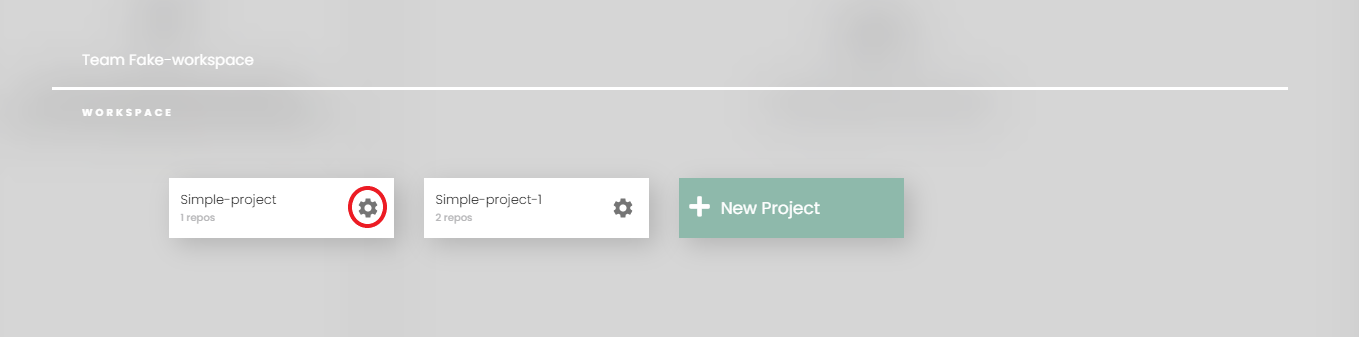
If adding repositories to exist project, choose the setting icon on the project card and choose 'Add new repositories'
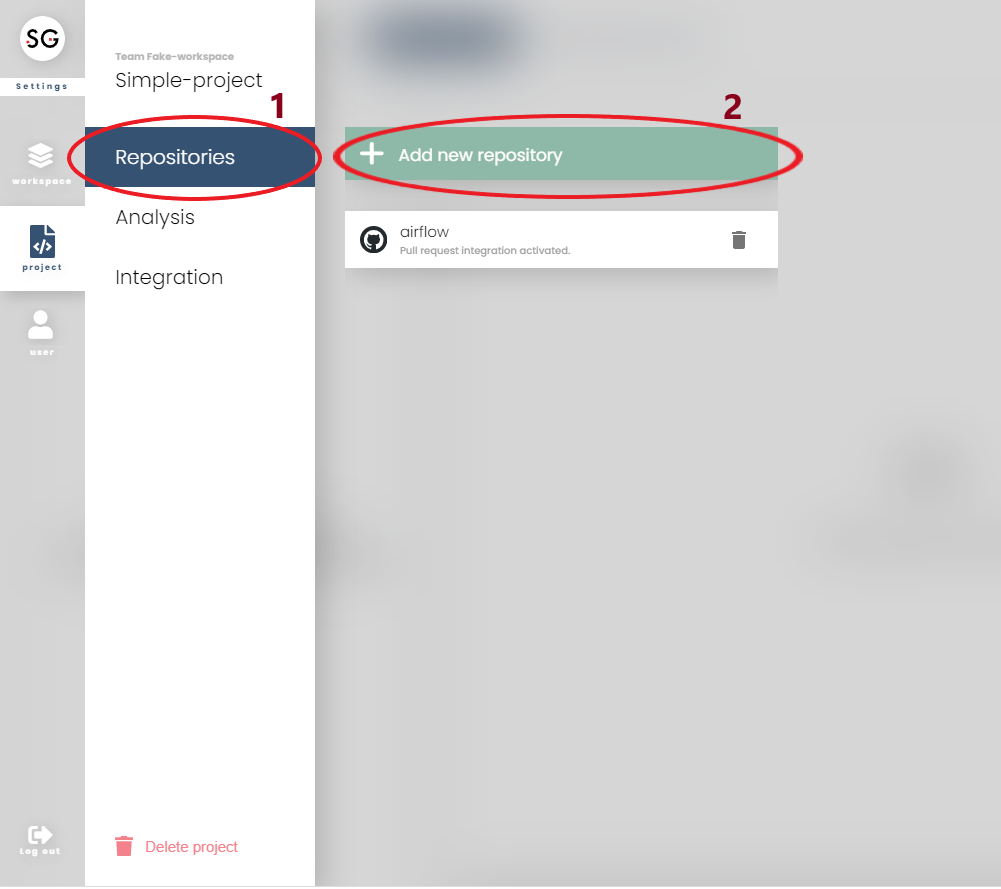
2. Add repositories from Bitbucket Server
You will go directly to this prompt after select 'Add new repositories' or setup name for project
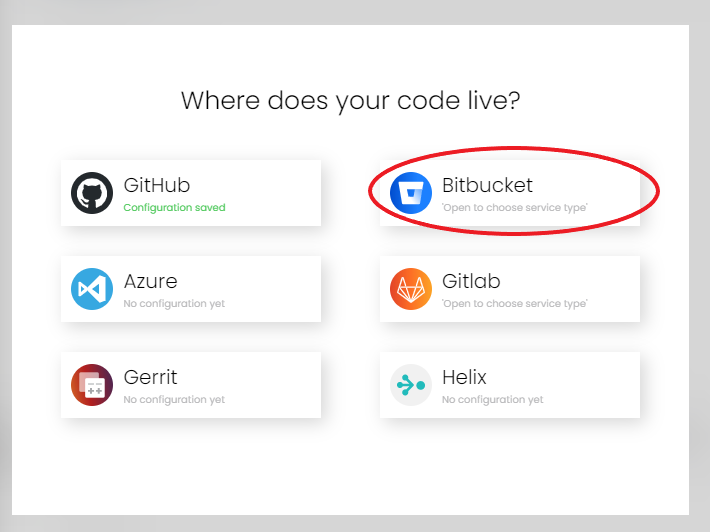
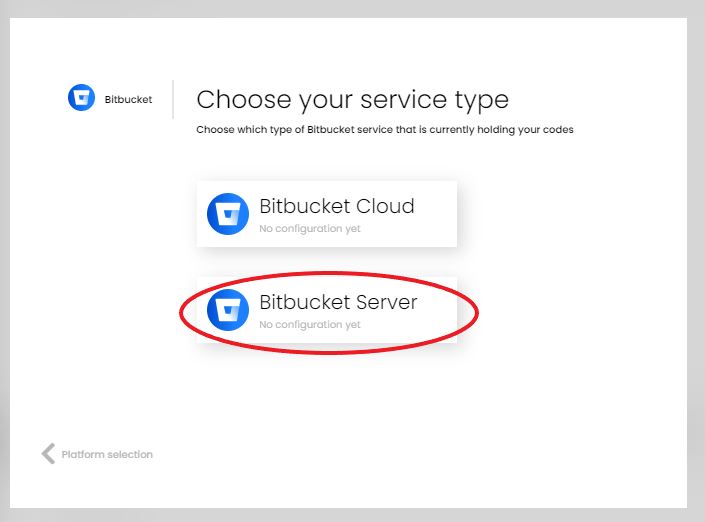
Note: If you have not setup your Bitbucket Server Base URI or Token or you did not have the correct information, the below dialog will appear, and you can change/add your Bitbucket Server URL, username and token.
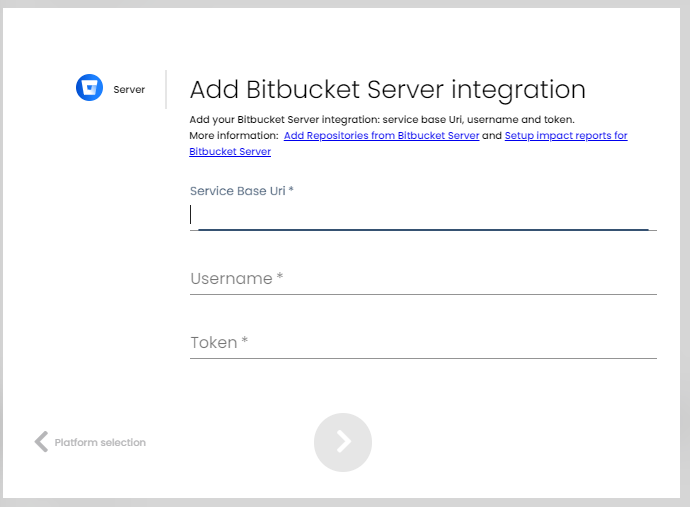
Fill in the values and go to next (the '>').
Consult the Atlassian documentation for how to create a personal access token: https://confluence.atlassian.com/bitbucketserver/personal-access-tokens-939515499.html
NOTE: you need to give "Project - read" and "Repository - admin" permission to the token so that Softagram can add the required webhook automatically and deliver the impact reports to the pull requests.
3. Select the repositories you want to add to this project
What next? Continue over to setup impact reports for your project.
NOTE: You can anytime change the Bitbucket Server settings in Project Settings --> Integrations:
You can open settings of project by one of two ways below:
From homepage:

Or from the switcher:
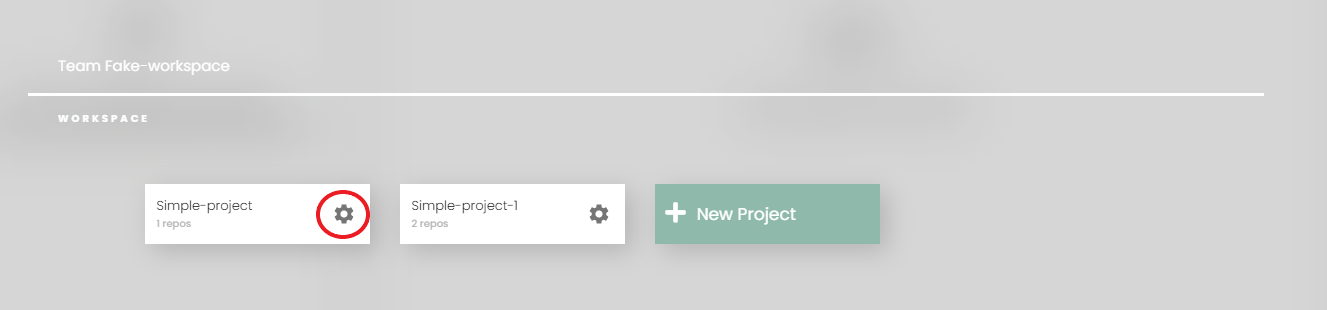
Open the integration form from steps below:
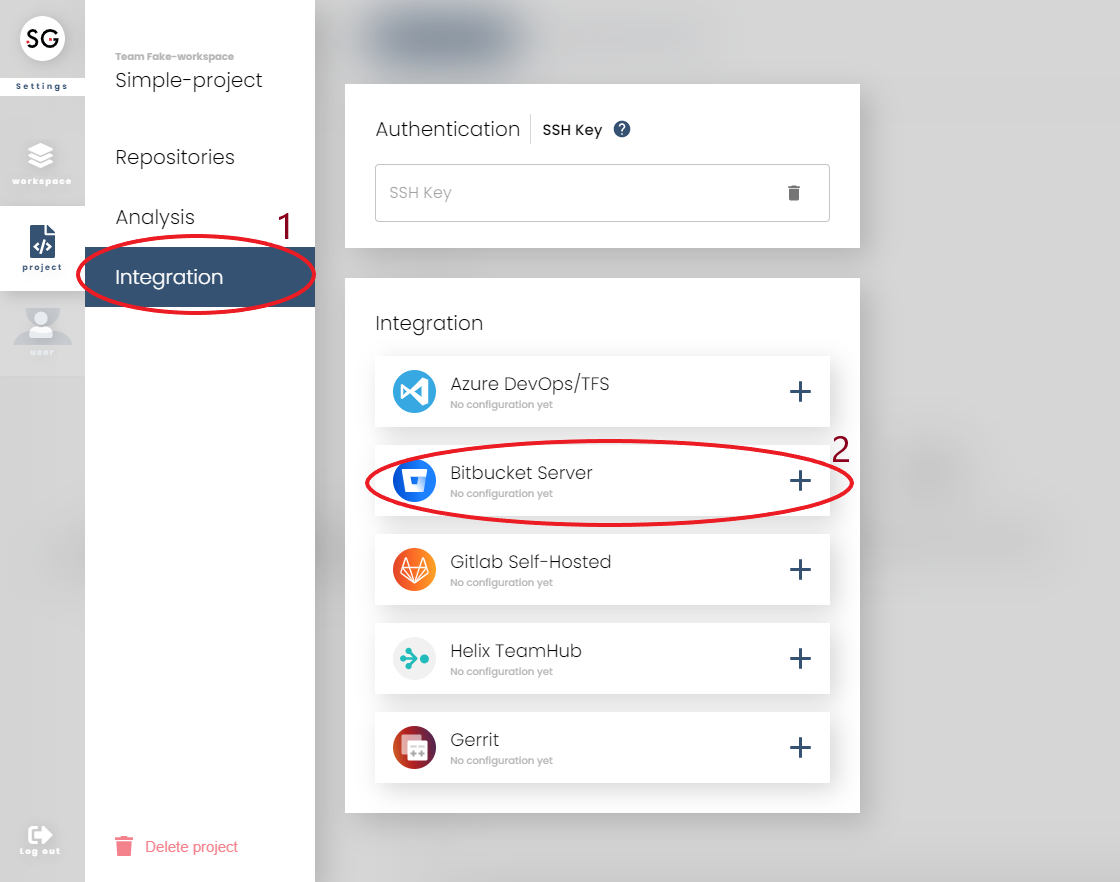
And fill in fields. Do not forget to Save before close settings.
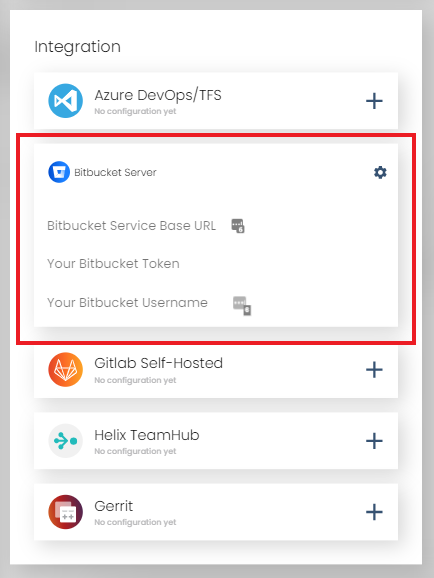
Remember to click 'Save' after changing the settings.
Originally published at help.softagram.com